Introduction
What is Project Access?
Project Access is a unified multi-role platform by AccessHub Inc. that combines social networking, freelancing, marketplace, creator economy, and business management into one ecosystem. It serves 9 distinct user roles, each with tailored dashboards, features, and workflows.
About AccessHub Inc.
AccessHub Inc. is the company behind Project Access, building secure, intelligent, and adaptive platforms. The platform's tagline — "Secure – Intelligent – Adaptive – Fraud-Resistant" — reflects its commitment to user safety and smart technology.
Purpose of This Demo
This interactive demo showcases the full scope of Project Access as a clickable prototype. You can explore all 9 role-based dashboards, interact with AI features, review security systems, and understand the platform's architecture. All data shown is simulated for demonstration purposes.
How to Log In
Use the following demo credentials to access the platform:
- Email: demo@accesshub.com
- Password: demo123
- 2FA Code: 123456
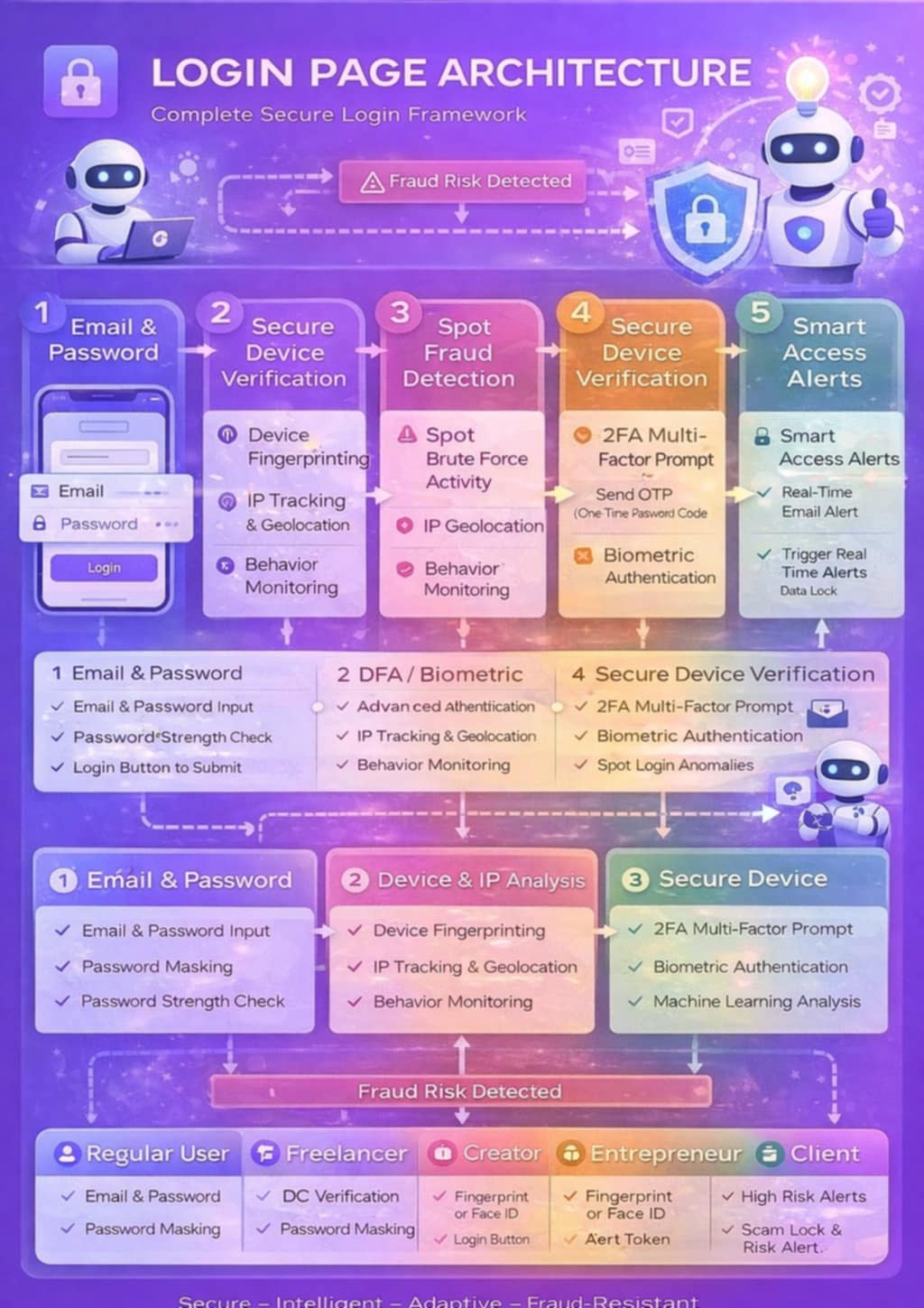
Login Flow
- Enter your email and password on the login page (pre-filled for demo)
- Click "Login" — a brief loading animation plays
- A 2FA verification modal appears with a 6-digit code input (pre-filled with 123456)
- Click "Verify" to complete authentication
- You'll be redirected to the Role Selection screen
Navigating the Interface
Switching Between Roles
You can switch roles at any time without logging out. Use the "Switch Role" option in the user menu (top-right avatar dropdown) or click the AccessHub logo in the navigation bar to return to the role selection screen.
Dashboard Layout
Each dashboard consists of three main areas:
- Left Sidebar: Role-specific navigation menu with icons and labels
- Main Content: Dashboard widgets, stats cards, feeds, tables, and action buttons
- Right Sidebar: Quick actions, recommendations, and supplementary information
Top Navigation Bar
The top bar provides access to:
- 🔍 Smart Search — Find people, posts, jobs, and products
- 🔔 Notifications — View recent alerts and updates
- 🤖 AI Assistant — Open the AI-powered chat assistant
- 🛡️ AI Guardian — View your security status
- 📖 Documentation — Access this help section
- 👤 User Menu — Profile, settings, role switching, and logout
Regular User
Theme Color: Blue (#2563EB)
Dashboard Title: Home Feed
Description: Social networking and discovery hub
Features
- Home Feed: View posts from people you follow, like, comment, and share
- Explore: Discover trending content, search people and hashtags
- Create Post: Share text, images, and updates with your network
- Messages: Direct messaging with other users
- Profile: Manage your profile, view activity, and upgrade roles
- Wallet: View balance and transaction history
Locked Features
Regular Users have access to core social features. To unlock advanced capabilities like job posting, selling, creator monetization, and withdrawals, upgrade to a specialized role.
Freelancer/VA
Theme Color: Green (#16A34A)
Dashboard Title: Freelancer Hub
Description: Find jobs, manage contracts, track earnings
Features
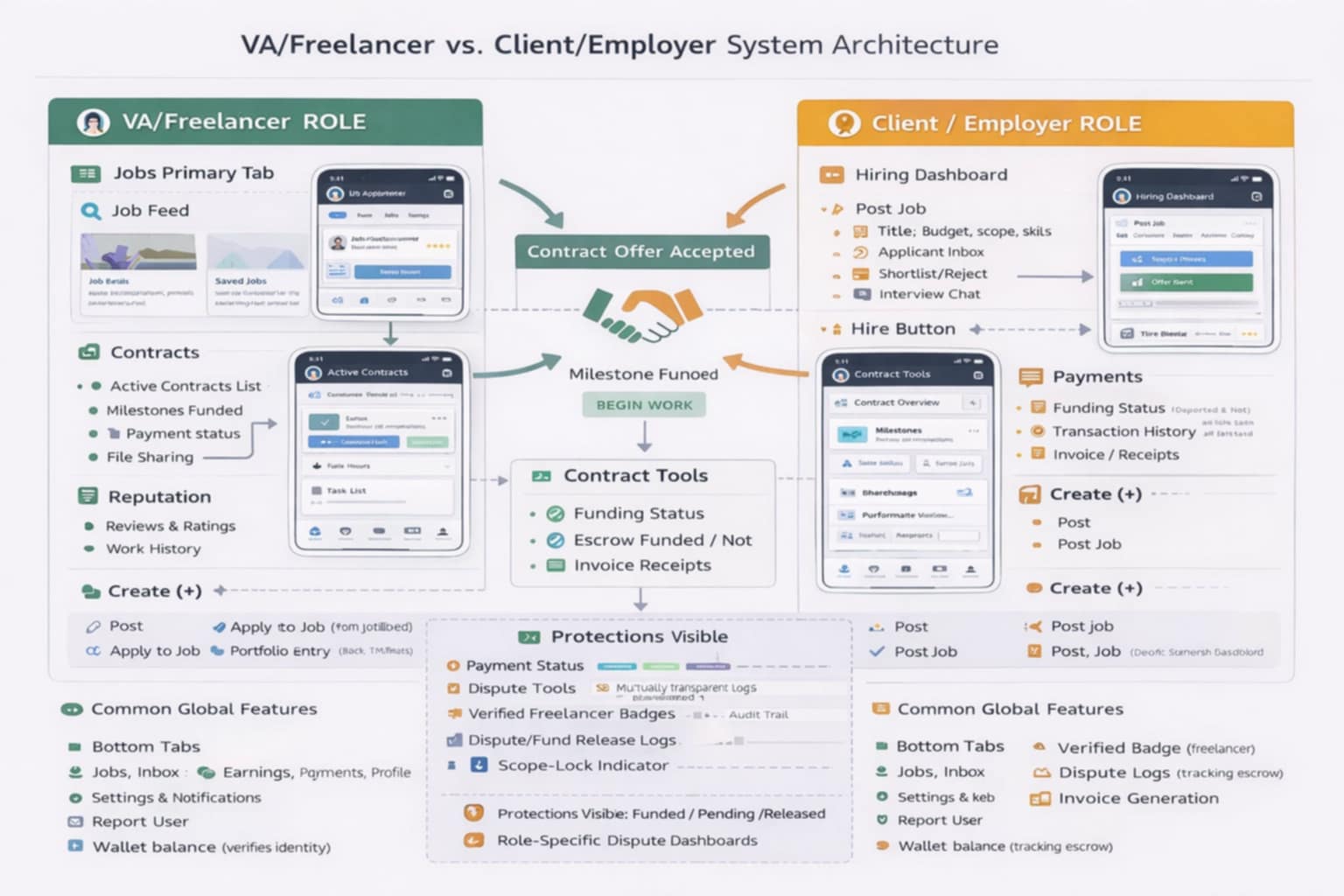
- Jobs Feed: Browse available jobs matching your skills, apply with proposals
- Active Contracts: Manage ongoing projects, track milestones, log hours
- Earnings: View earnings history, pending payments, and withdrawal options
- Payments: Track payment status, funded escrow, and invoices
- Reputation: View ratings, reviews, and work history
- Portfolio: Showcase your best work to potential clients
Protections
Freelancers benefit from Payment Status badges, Verified Freelancer Badge, Scope-Lock Indicator, and escrow protection for all contracts.
Client/Employer
Theme Color: Orange (#F59E0B)
Dashboard Title: Hiring Dashboard
Description: Post jobs, hire talent, manage contracts
Features
- Hiring Dashboard: Overview of active jobs, applicants, and contracts
- Post a Job: Create job listings with title, budget, scope, and required skills
- Applicant Inbox: Review, shortlist, interview, and hire applicants
- Active Contracts: Monitor project progress, milestones, and deliverables
- Payments: Manage escrow funding, transaction history, and invoices
Dispute Tools
Clients have access to dispute resolution tools, fund release logs, and role-specific dispute dashboards for managing contract disagreements.
Creator
Theme Color: Purple (#7C3AED)
Dashboard Title: Creator Studio
Description: Create content, monetize, grow your audience
Features
- Creator Studio: Upload videos, go live, create posts and reels
- Analytics: Track views, watch time, engagement rate, and follower growth
- Monetization: Earn through tips, subscriptions (Phase 2), and gifts for live (Phase 2)
- Orders: Manage content-related orders and deliveries
- Community: Engage with your audience through pinned posts and comment filters
Seller/Marketplace
Theme Color: Amber (#D97706)
Dashboard Title: Seller Dashboard
Description: Manage your store, products, and orders
Features
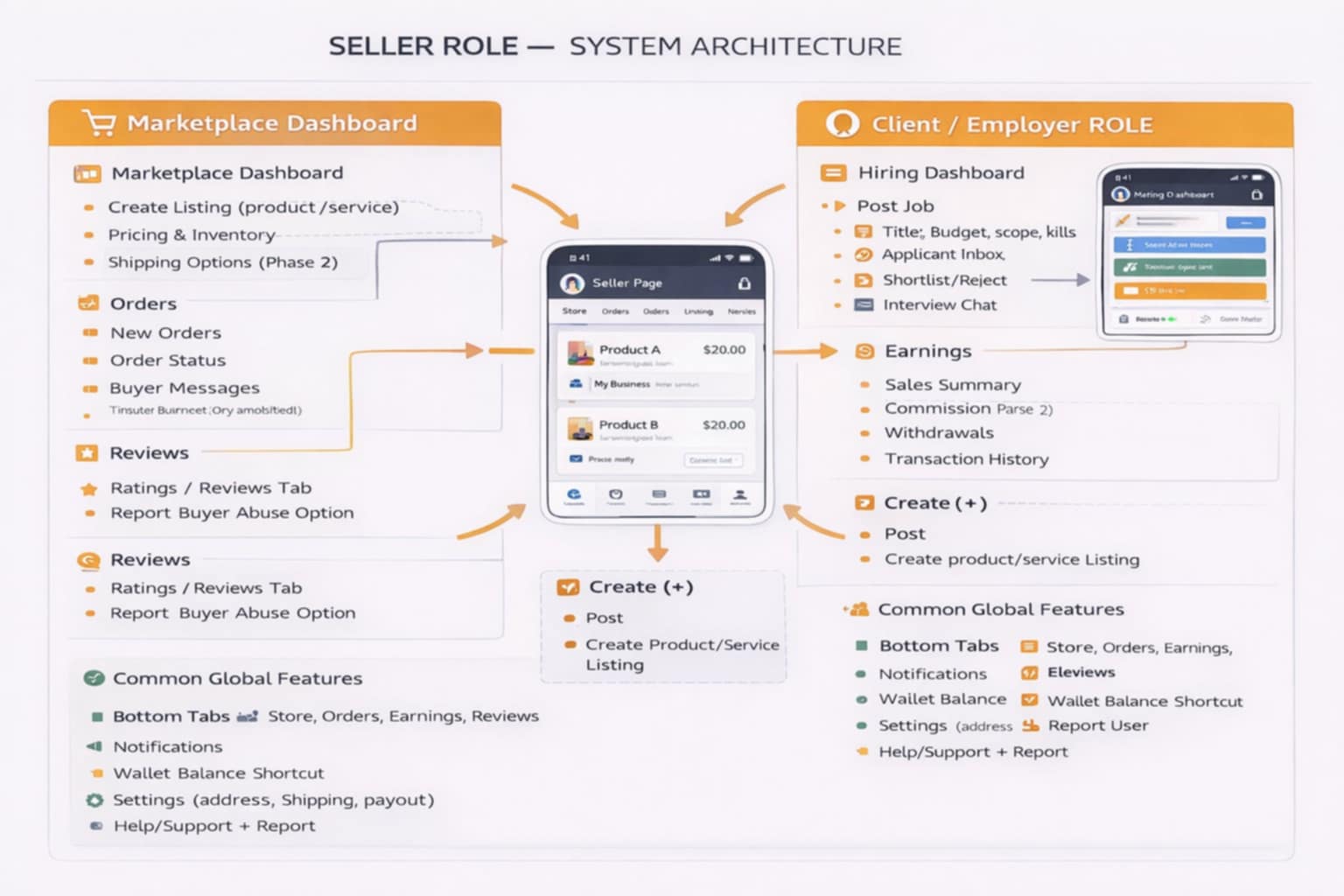
- Store: Your storefront with product listings and store analytics
- Orders: Track new orders, order status, and buyer messages
- Listings: Create and manage product/service listings with pricing
- Earnings: Sales summary, commission breakdown, and withdrawal options
- Reviews: View ratings and reviews from buyers
Entrepreneur/Business
Theme Color: Slate (#475569)
Dashboard Title: Business Hub
Description: Manage your business page, team, and operations
Features
- Business Page: Company profile with services, products, and contact info
- Team & Roles: Add team members, assign permissions, manage shared inbox (Phase 2)
- Analytics: Business performance metrics and insights
- Billing: Subscription tier management, invoices, and revenue analytics (Phase 2)
- Business Tools: Insights dashboard, leads tracking (Phase 2), campaign tools (Phase 2)
Partner
Theme Color: Indigo (#4F46E5)
Dashboard Title: Partner Dashboard
Description: Track referrals, earn revenue share, grow your network
Features
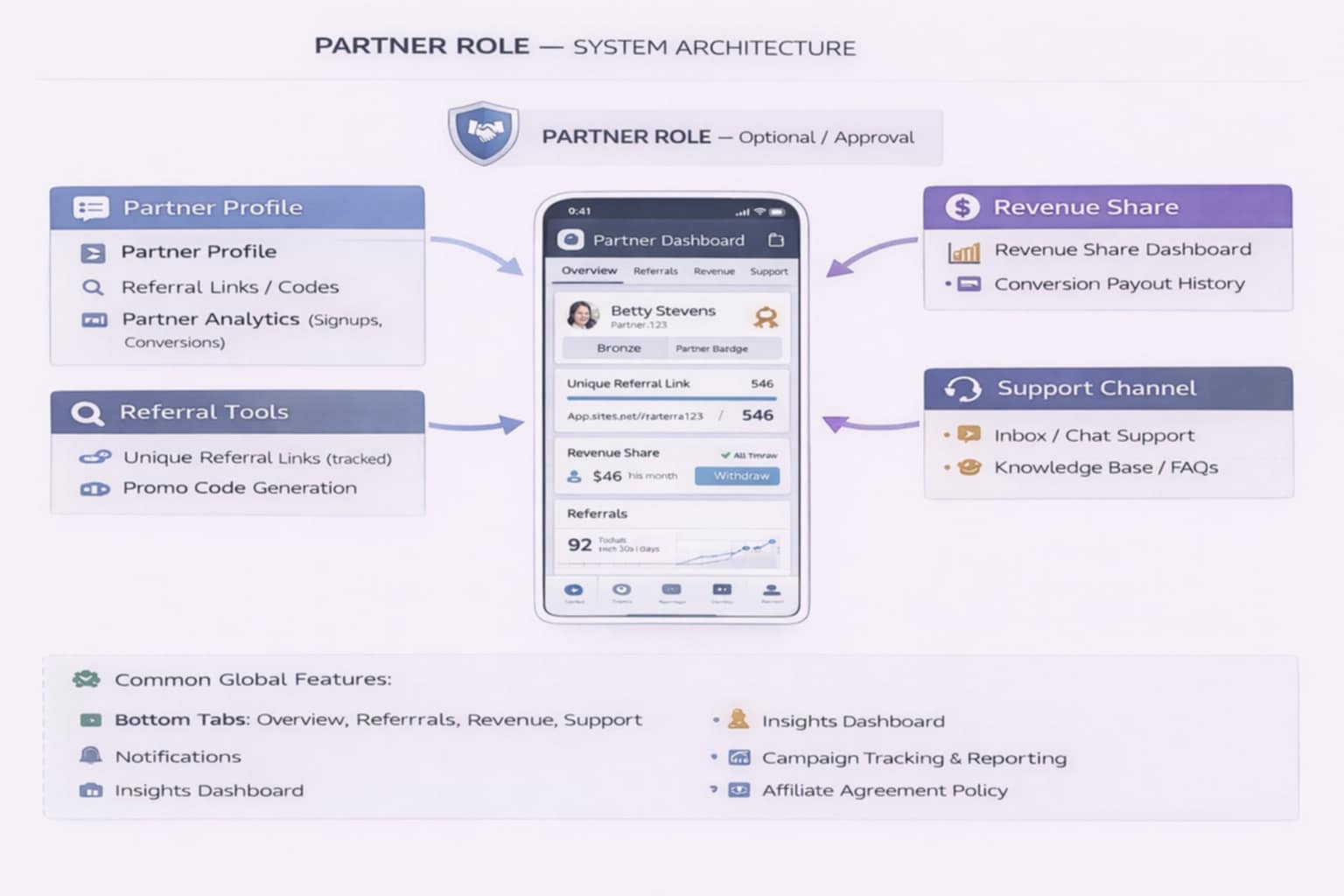
- Overview: Partner profile, referral stats, and revenue summary
- Referrals: Unique referral links with tracking, click counts, and conversion data
- Revenue: Revenue share dashboard, conversion payout history
- Promo Codes: Generate and manage promotional codes
- Analytics: Campaign tracking, performance metrics, and optimization tips
Investor
Theme Color: Teal (#0D9488)
Dashboard Title: Investor Portal
Description: Track portfolio, review company updates, access documents
Features
- Portfolio: Company overview, valuation, and key metrics
- Updates: Quarterly reports and company announcements
- Reports: Financial reports and performance analysis
- Documents: Contracts, notices, and cap table summary (Phase 2)
- Governance: Voting on proposals and meeting notes (Phase 2)
- Security: Strong verification required, read-only access by default
Admin/Moderator
Theme Color: Navy (#1E3A5F)
Dashboard Title: Admin Dashboard
Description: Platform management, content moderation, user oversight
Moderator Tools
- Reports Queue: Review reported content with actions (Review, Dismiss, Warn, Suspend)
- Content Review: Flagged content cards with detailed information
- Warning/Suspension Tools: Issue warnings or suspend user accounts
- Audit Trail: Timestamped log of all admin actions
Admin Tools
- User Management: Search users, view user list with roles and status
- Role Approvals: Review and approve/deny role upgrade requests
- Transactions: Monitor platform transactions with filters
- Revenue Analytics: Revenue charts and commission breakdown
AI Features
Access AI Assistant
The AI Assistant is available from any dashboard via the 🤖 button in the top navigation. It provides role-specific help including:
- Regular User: Trending content discovery, people suggestions, post optimization
- Freelancer: Proposal writing, job matching, portfolio optimization, career insights
- Client: Job description writing, interview questions, scope clarity checks, talent finding
- Creator: Content ideas, audience insights, revenue forecasting, engagement optimization
- Seller: Pricing recommendations, product descriptions, conversion insights, sales analytics
- Entrepreneur: Hiring patterns, operational analysis, business strategy, team management
- Partner: Referral strategy optimization, campaign performance, revenue maximization
- Investor: Portfolio analysis, company updates, governance preparation
- Admin: Flagged content review, platform metrics, user analytics, security monitoring
AI-Powered Features
- Smart Search: Intelligent search with autocomplete, categorized results
- Smart Suggestions: Personalized recommendations based on your role and activity
- Content Generation: AI-assisted content creation for proposals, job posts, and more
- Data Insights: Analytics and forecasting powered by AI
Security & Trust
AI Guardian
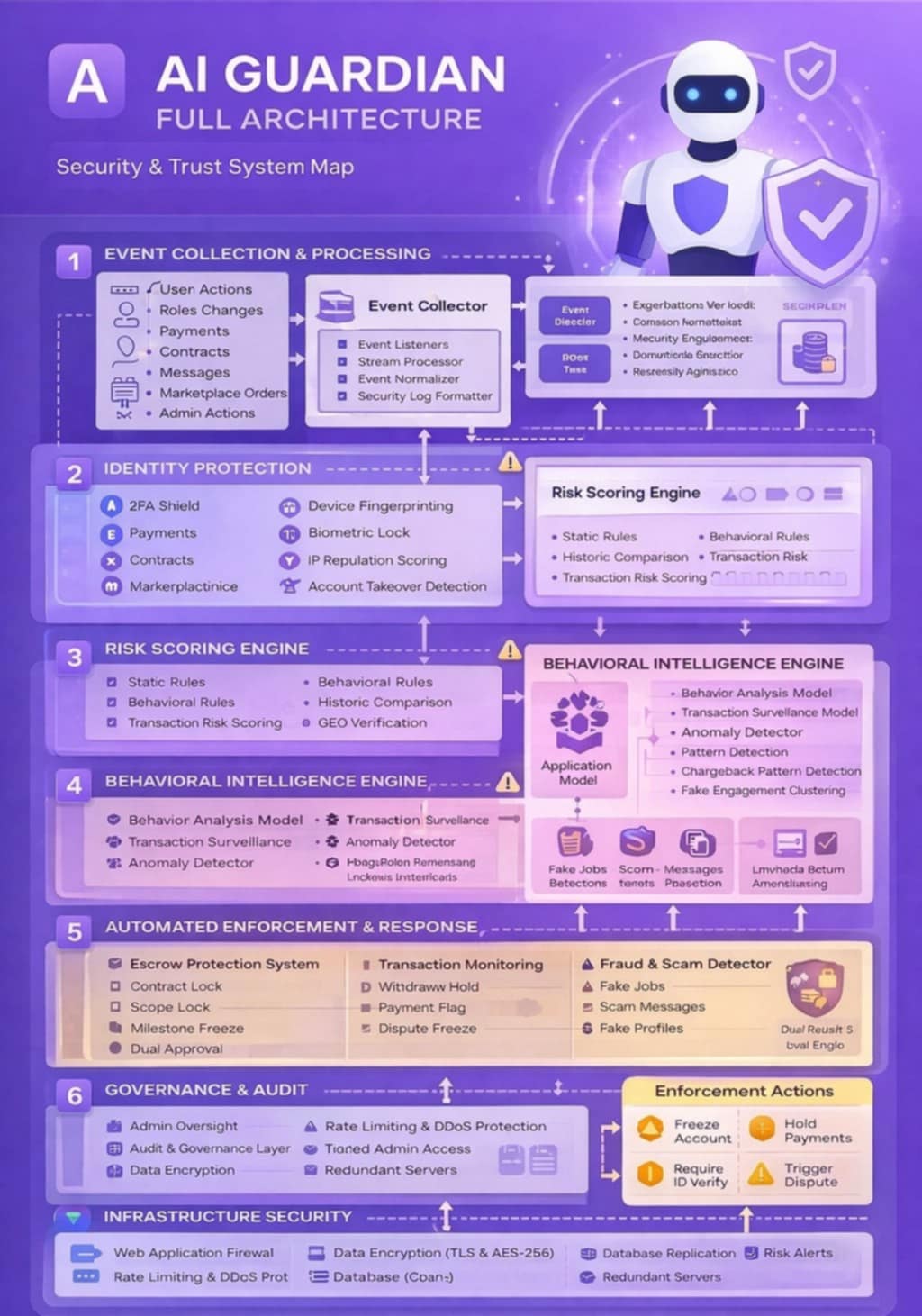
AI Guardian is the platform's comprehensive security system that monitors and protects all user accounts. Access it via the 🛡️ button in the navigation bar.
Security Features
- Two-Factor Authentication (2FA): Required for all logins, adds an extra verification step
- Device Fingerprinting: Recognizes trusted devices and flags unknown ones
- IP Monitoring: Tracks login locations and alerts on suspicious access
- Biometric Lock: Optional fingerprint/face ID authentication
- Real-time Threat Detection: Monitors for suspicious activity patterns
Escrow Protection
All freelancer-client contracts use escrow protection. Funds are held securely until milestones are completed and approved, protecting both parties.
Fraud Detection
The platform uses behavioral analysis, transaction surveillance, and pattern detection to identify and prevent fraud, fake profiles, scam messages, and phishing attempts.
Platform Architecture
System Overview
Project Access is built as a unified platform serving 9 distinct user roles. Each role has its own dashboard, navigation, and feature set, while sharing common infrastructure for security, AI, and communication.
Role-Based Access Control
The platform implements role-based access control (RBAC) where each user role has specific permissions and features. Users can switch between roles to access different capabilities.
Navigation Structure
The platform follows a consistent navigation pattern across all roles:
- Top navigation bar with search, notifications, AI assistant, and user menu
- Left sidebar with role-specific menu items
- Main content area with dashboard widgets
- Right sidebar with quick actions and recommendations
Onboarding Flow
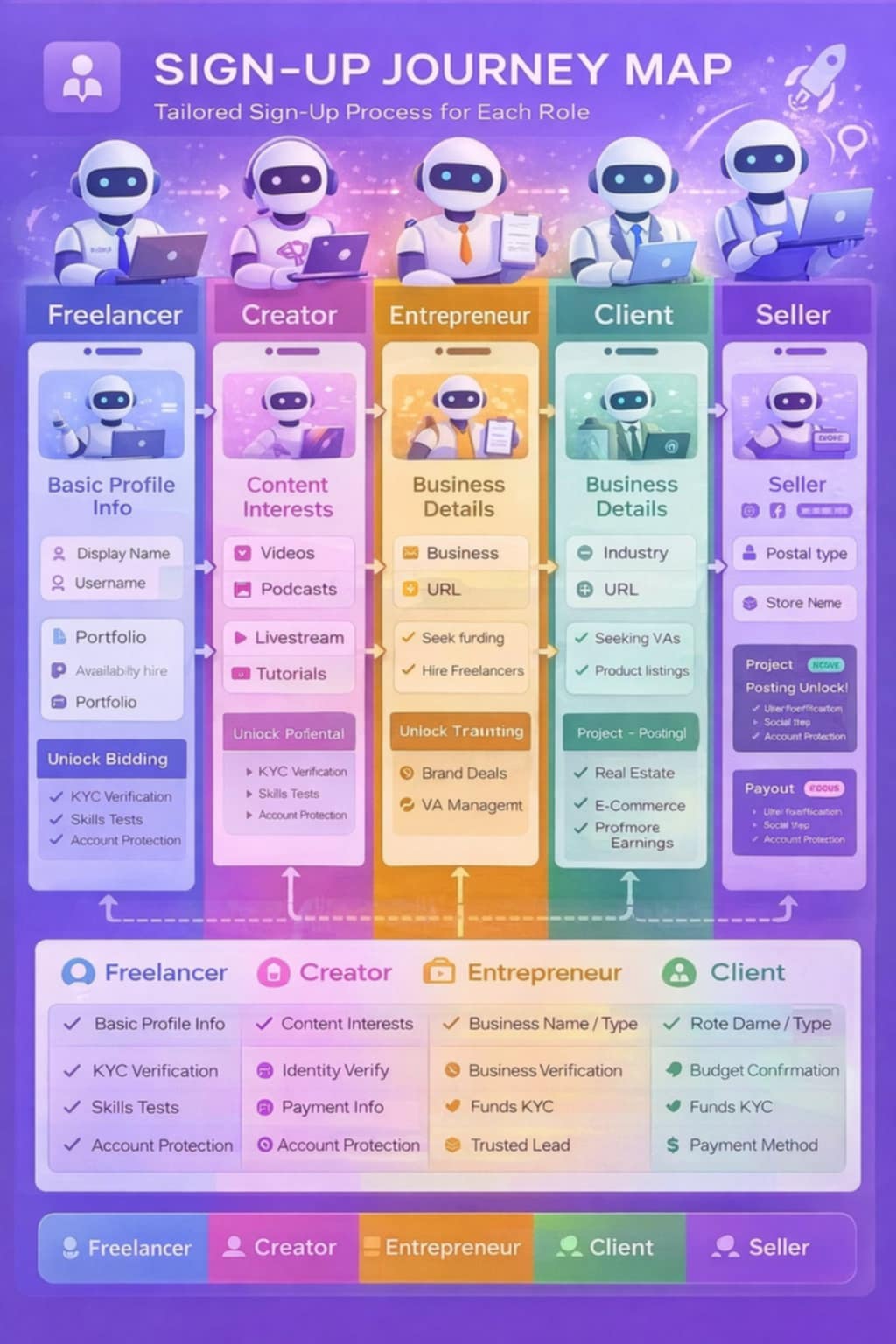
Role-Specific Onboarding
Frequently Asked Questions
How do I switch between roles?
Click your avatar in the top-right corner and select "Switch Role" from the dropdown menu. You can also click the AccessHub logo in the navigation bar to return to the role selection screen.
Is my data secure?
Yes. Project Access uses multiple layers of security including 2FA, device fingerprinting, IP monitoring, and AI-powered threat detection. All data is encrypted with TLS and AES-256.
How does escrow protection work?
When a client hires a freelancer, funds are held in escrow. The money is released to the freelancer only after the client approves the completed milestone. This protects both parties from fraud.
What are Phase 2 features?
Features marked as "Phase 2" are planned for future releases. They are shown in the demo to illustrate the platform's roadmap but are not yet functional.
Can I use multiple roles simultaneously?
You can switch between roles at any time, but you view one role's dashboard at a time. Your data and progress are preserved across role switches.
How does the AI Assistant work?
The AI Assistant provides role-specific help and recommendations. It can write proposals, generate job descriptions, suggest content ideas, analyze data, and more. Access it via the 🤖 button in the navigation bar.
What is AI Guardian?
AI Guardian is the platform's security system that monitors your account in real-time. It provides a security score, tracks login events, and manages active protections like 2FA and device fingerprinting.